

NaviStation5 v0.1.0 by ivanmzcom
Navidrome player inside the Control Center Music card, so your library keeps playing on the home screen and in games
Install on your PS5
Payload: start elfldr 0.25 or newer on the PS5 first. It listens on port 9021. Then press Send to PS5 beside the file under Files, on a computer or phone on the same network. elfldr downloads the payload and runs it, so the PS5 needs to be online.
Files
| File | Size | SHA-256 | |
|---|---|---|---|
| navistation5.elf | 370 KB | 2210c0e2…e32e | Send to PS5 Download |
Screenshots
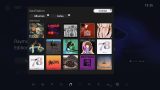
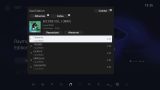
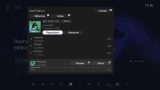
About NaviStation5
Send navistation5.elf to the ELF loader, usually on port 9021, then open Control Center, Music, and sign in with your Navidrome server's address and account. Albums and playlists show as covers. Play one in order or shuffled, and the queue carries on with the Music card closed, on the home screen or in a game. Each new song comes up as a silent notification.
- L1 opens Albums, R1 opens Playlists
- R2 opens Account
- Square pauses or resumes
- Triangle stops
Load it once per boot, and restart the console before loading a newer build. If Music was open when you sent it, close and reopen it. The login token is kept across restarts, unencrypted, and Sign out removes it. The card follows the console's language in Spanish, English, French, German, Italian or Portuguese.
It runs on firmware 13.20 only: the developer says other firmware is rejected. The author calls this first release experimental.
Release notes
v0.1.0 · NaviStation5 v0.1.0 · Oct 11, 2026
First experimental public release of NaviStation5 for PS5 firmware 13.20.
Features
- Navidrome albums and playlists in the native Control Center Music card.
- Cover grid, album details, Play, Shuffle and continuous collection playback.
- Playback in Home and games, with no companion audio app.
- Saved login across console restarts.
- Song notifications and six UI languages, with English fallback.
- Native controller shortcuts: L1 Albums, R1 Playlists, R2 Account, Square Pause/Resume and Triangle Stop.
Install
- Download
navistation5.elfand optionally verify it againstSHA256SUMS. - Activate the jailbreak and ELF loader on a PS5 running firmware 13.20.
- Send the ELF to the loader (usually TCP port 9021).
- Open Control Center → Music, enter your Navidrome server URL and sign in. If Music was already open when you loaded the ELF, close and reopen it.
The installer needs the Control Center runtime to be available. If installation fails because that runtime is not initialized, open Control Center and load the ELF again. Opening Music before loading is not a requirement.
Load once per console boot. Restart before installing an updated build. Other firmware versions are rejected.
The release uses http://navidrome.local:4533 only as an editable default. It contains no development server configuration or Navidrome login. The saved login token on the console is not encrypted.
Validation and source
73 JavaScript tests, 3 Python discovery tests and 13 native audio gate cases passed. The same UI and playback code was checked on the development PS5; this distribution build uses the public default server configuration.
Source is GPL-3.0-or-later and available in the source archives below. See LICENSE and NOTICE.md for notices and third-party rights.