
Jewel Case v1.1.1 by SkaRift
Home-screen ROM launcher that shows every system's games as cartridges and discs with box art, and starts each one in the right emulator
Install on your PS5
App folder (.zip): unzip PPSA75837.zip and copy the PPSA75837 folder to /data/homebrew/ on the PS5, over FTP or from a USB drive. Some apps also need their title ID added to etaHEN's app list: the release notes say.
Files
| File | Size | SHA-256 | |
|---|---|---|---|
| PPSA75837.zip | 31.7 MB | 4d908862…2fb2 | Download |
Screenshots
About Jewel Case
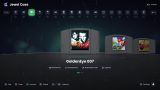
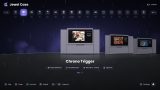
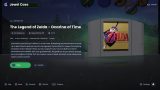
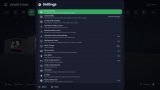
Jewel Case puts your emulator games on one shelf, NES to Xbox 360, with a tab for each system plus tabs for recently played games and favourites. Each game is drawn as its system's cartridge, card or disc with its cover printed on it, from the libretro thumbnails or the LaunchBox Games Database, and real disc scans where there are some. A details screen has the year, genre, developer and an in-game screenshot.
It starts each game in a standalone PS5 emulator when one is installed, and falls back to RetroArch with a matching core: SwanStationPS5 or PSXS5 for the PlayStation, PS5SX2 for the PS2, Mupen64Plus for the N64, Porpoise for GameCube and Wii, PSFlycast for the Dreamcast, XPSemu for the Xbox and ProsperoEden for the Switch. SwanStationPS5, PSXS5 and PS5SX2 open their own menu, where you pick the game again. Jewel Case includes no games, BIOS files or emulators.
Put each system's games in its own folder under /data/roms, or /mnt/usb0/roms on a USB drive. Settings, Create system folders makes them all and leaves a guide listing the file types each one takes. Switch updates and DLC show with their game, and with ProsperoEden they can be moved into its updates folder from File info.
It needs an ELF loader on port 9021 (etaHEN's or a standalone one) and ShadowMountPlus. Copy the PPSA75837 folder to /data/homebrew/. Settings, favourites and covers are kept in /data/jewelcase. The developer lists firmware 13.42 with etaHEN.
Release notes
v1.1.1 · Jewel Case 1.1.1 · Oct 19, 2026
Jewel Case 1.1.1
SwanStationPS5 support, tidier Switch updates, and a few fixes.
What's new
PS1: SwanStationPS5
- darkxex's SwanStationPS5 is now supported and used ahead of PSXS5. Like PSXS5, it opens its own main menu, where you pick the game.
- PS1 games in SwanStationPS5's and PSXS5's own folders (
/data/SwanStationPS5/games,/data/PSXS5/games, or aSwanStationPS5/PSXS5folder on a drive) now show up in Jewel Case too.
Switch
- Update and DLC files with hash names (like
001d8d5a7fe8d0cbd148ff67d3b830a1.nsp) no longer show as extra games. Jewel Case reads the title ID inside each file and groups it with its game. - Update in File info (Square, then Square again) moves a game's update and DLC into ProsperoEden's updates folder, where ProsperoEden applies them. The game then shows Updated.
- A
firmwarefolder in your Switch games folder no longer shows up as a game. - Updates kept in an
updates,updateordlcfolder of your own only show with their game.
Details screen and feel
- Simpler update chip: Update available (amber) or Updated (green), and nothing when a game has no update files. No more confusing file version numbers like v0 or v327680.
- Turning a game round with the right stick now reflects its back on the floor, not its front.
- The rain music is quieter by default (40%).
Install
- Download
PPSA75837.zipbelow. - Extract it and copy the
PPSA75837folder to/data/homebrew/on your PS5 (to update, copy it over your existing one). - Install it with ShadowMountPlus and start Jewel Case from the home screen.
Needs an ELF loader on port 9021 (etaHEN's, or a standalone one). Tested on firmware 13.42.
Your settings, favorites and covers in /data/jewelcase are kept. See README.txt in the app
folder for folders, controls and troubleshooting.
Known limitations
- SwanStationPS5, PSXS5 (PS1) and PS5SX2 (PS2) open their own main menu instead of starting the game; pick it again there.
- Jewel Case can't install updates or DLC into an emulator itself; ProsperoEden doesn't need it, other emulators install them from their own menu.