
PS4 Ambilight v4.0.0 by mitchshimy
Lights a WLED LED strip round the TV in the colours at the edges of the PS4's picture, no capture card or PC needed
Install on your PS4
Package (.pkg): with GoldHEN running, copy ps4-ambilight-app.pkg to the root of a USB drive (exFAT or FAT32), plug it into the PS4 and install it from Settings › Debug Settings › Game › Package Installer.
From a computer or phone: give this link to a remote package sender (GoldHEN's Remote Package Install, or Remote Package Installer on port 12800):
https://store.brewology.com/dl/6579/ps4-ambilight-app.pkg
Payload (.bin): download ps4-ambilight.bin under Files, then send it from a computer on the same network to your PS4's payload loader, such as GoldHEN's BinLoader on port 9090. A payload sender does it, or nc <PS4 address> 9090 < ps4-ambilight.bin.
Files
| File | Size | SHA-256 | |
|---|---|---|---|
| ps4-ambilight-app.pkg | 7.3 MB | 220e9a6c…cd0a | Download |
| ps4-ambilight.bin | 67 KB | bda812ef…174b | Download |
Screenshots

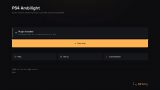
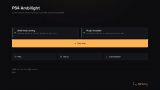
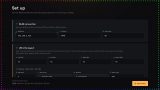
About PS4 Ambilight
You need a WLED controller with its LED strip on the same network, and GoldHEN's plugin loader switched on (Plugin Settings in the GoldHEN menu). GoldHEN won't change that while an app is open, so do it before opening the companion app. In the app, the main button on Home installs, updates or enables the plugin, whichever is needed. Under Set up, enter the WLED controller's IP address (a number, not a name, with port 4048 by default) and the strip's layout: LEDs per edge, start corner, direction and colour order. Test Strip lights the strip from the app so you can sort out the wiring first. After that there's nothing else to open: the plugin starts on its own when a game does.
The shell feed is optional and off by default. It's a second plugin plus the ps4-ambilight.bin payload, installed from Set up, and it lights the strip on the home screen, in Settings and the quick menu, then steps aside when a game starts. It can be set to start at boot. The developer has it confirmed on firmware 9.00 and 12.52 only, and says the payload refuses firmware outside its list.
Since 4.0 the companion app says when a newer version of itself is out and can download it. The developer's own setup is GoldHEN 2.4b18.9 and 2.4b18.10 on those two firmware versions, with a 229-LED WS2812B strip. They haven't tried a PS4 Pro and say its colours may come out wrong.
Release notes
v4.0.0 · Oct 28, 2026
PS4 Ambilight 4.0
The big change: the strip can now stay lit outside games too, from the PS4's own Home screen, Settings and quick menu, with the new optional shell feed. The game plugin itself got steadier, and the companion app now tells you when it needs updating.
New: the shell feed (optional, off by default)
- Lights the strip from the PS4's Home screen, Settings and quick menu, and steps aside the moment a game starts.
- Installs from the companion app: turn it on under Set up > Shell feed, then press the main button on Home. The app downloads the files, checks each one's SHA-256, and puts them where they belong.
- Comes with a standalone Ambilight payload that you launch from the app (Launch Ambilight payload) or set to Autoload at boot. Autoload only ever adds its own line to GoldHEN's AutoRun list.
- Confirmed working on firmware 9.00 and 12.52. Other versions are untested.
- With the switch off, the app does nothing shell-related at all.
Game plugin
- Steadier hand-off between a game, the app and the shell feed. They now coordinate over a local connection instead of polling files. A game that crashes can no longer leave the strip stuck.
- No more long stalls. Slow
/datafile access no longer stops the strip, and the plugin does far fewer file operations while you play. - Fixed the launch flicker where the strip went dark for a few seconds at game launch (seen in FC26).
- Lapy's PS4 Player no longer flashes white and blue over part of the strip.
- Everything the plugin and shell feed need now lives in one folder,
/data/ps4-ambilight/. - Plugin and shell feed now show a console notification for problems that used to fail silently. These can be turned off with a switch in the app (a few essential ones always show).
- The shell feed no longer falls back to a built-in WLED address. With no address set, it sends nothing.
Companion app 1.02
- It tells you when a newer app is out, and Triangle on Home downloads the new
.pkgfor you. It checks the file against its published checksum and saves it in/data/pkg. Then install it from GoldHEN > Debug Settings > Package Installer. - A console notification also tells you at launch when an update is available.
- Controls no longer feel sticky. Rebuilt input handling, optimised drawing and smooth scrolling.
- Home now shows whether the Ambilight payload is running. Square quick-saves on Set up and Customization.
- The app checks GoldHEN's Enable Plugins Loader setting first and says so on Home when it's off.
Updating
- Install the new companion app
.pkgfrom the assets below. - Open it and press the main button on Home to update the plugin.
- Optional: turn on the shell feed in Set up and install it from Home.
You'll see a one-time notice after updating the plugin, and an old app can't know a new one exists, so install the new app first.
Full details in the [changelog](../../blob/main/CHANGELOG.md).