

Plugins Manager v1.00 by aidam1980
Edits GoldHEN's plugins.ini on the console: pick plugins for one game or many, set default plugins and back the file up
Install on your PS4
Package (.pkg): with GoldHEN running, copy PLUGINS.MANAGER.pkg to the root of a USB drive (exFAT or FAT32), plug it into the PS4 and install it from Settings › Debug Settings › Game › Package Installer.
From a computer or phone: give this link to a remote package sender (GoldHEN's Remote Package Install, or Remote Package Installer on port 12800):
https://store.brewology.com/dl/16506/PLUGINS.MANAGER.pkg
Files
| File | Size | SHA-256 | |
|---|---|---|---|
| PLUGINS.MANAGER.pkg | 7.3 MB | bb93cb81…3fa7 | Download |
Screenshots

About Plugins Manager
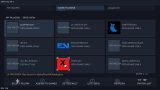
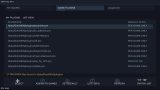
Lists the games and apps installed on the PS4 next to the plugin files in GoldHEN's plugins folder. Pick a game and choose which plugins load with it, or pick a plugin and mark every game it should load for. A plugin can also be made a default, so it loads with every app. In My Plugins, R3 switches between a list and a grid of pictures: put a PNG with the same name next to a plugin, such as orbisnet.png beside orbisnet.sprx.
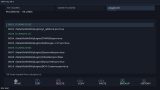
The plugins.ini editor shows the file line by line. You can change a line with the on-screen keyboard, delete it, or copy it and paste it under another. It doesn't back the file up by itself, so press Triangle for a backup before you change anything. A wrong path in plugins.ini can stop plugins loading.
Games list:
- Cross: pick plugins for the game (several at once)
- Triangle: show the plugins it loads
My Plugins:
- Cross: pick the games for the plugin
- Options: make it a default plugin
- R3: list or grid
- Square: reload the list
- L1 / R1: switch lists
plugins.ini editor:
- Cross: edit the line
- Square: delete it
- L2 / R2: copy it, paste it below
- Triangle: make a backup
- Options: open the backups