
HearBridge v1.0.0 by X-F1REBALL-X
Game sound on ordinary Bluetooth headphones, earbuds or speakers, through a CSR8510 USB Bluetooth dongle
Install on your PS4
Package (.pkg): with GoldHEN running, copy HearBridge-PS4-1.0.0.pkg to the root of a USB drive (exFAT or FAT32), plug it into the PS4 and install it from Settings › Debug Settings › Game › Package Installer.
From a computer or phone: give this link to a remote package sender (GoldHEN's Remote Package Install, or Remote Package Installer on port 12800):
https://store.brewology.com/dl/6490/HearBridge-PS4-1.0.0.pkg
Files
| File | Size | SHA-256 | |
|---|---|---|---|
| HearBridge-PS4-1.0.0.pkg | 6.3 MB | ad3f95b6…4489 | Download |
Screenshots



About HearBridge
The PS4 can't send audio to normal Bluetooth headphones itself, so HearBridge uses a separate USB dongle with the CSR8510 chip (USB ID 0A12:0001). The console's own Bluetooth isn't touched, so controllers stay connected.
Turn on BinLoader server and Plugin Loader in the GoldHEN settings, plug the dongle in and open the HearBridge tile. It installs its game audio plugin, starts the service and shows an address on port 8090. Open that on a phone, PC or the PS4 browser, press Scan for devices, put the headphones in pairing mode and pair. The author recommends restarting the console once after the first install.
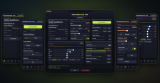
The page has volume, a Boost slider, a five-band equaliser and per-game sound profiles. It keeps up to 8 devices and reconnects to the last one by itself.
Only game audio is sent, not menu sounds or voice chat, and only from games that output at 48 kHz, which the author says is almost all of them. Bluetooth adds a little delay behind the TV. The launcher edits GoldHEN's config.ini and plugins.ini, keeping .bak copies of both. Anyone on your network can open the page, so keep it to a network you trust.
Turn on BinLoader server and Plugin Loader in the GoldHEN settings, plug the dongle in and open the HearBridge tile. It installs its game audio plugin, starts the service and shows an address on port 8090. Open that on a phone, PC or the PS4 browser, press Scan for devices, put the headphones in pairing mode and pair. The author recommends restarting the console once after the first install.
The page has volume, a Boost slider, a five-band equaliser and per-game sound profiles. It keeps up to 8 devices and reconnects to the last one by itself.
Only game audio is sent, not menu sounds or voice chat, and only from games that output at 48 kHz, which the author says is almost all of them. Bluetooth adds a little delay behind the TV. The launcher edits GoldHEN's config.ini and plugins.ini, keeping .bak copies of both. Anyone on your network can open the page, so keep it to a network you trust.
Release notes
v1.0.0 · HearBridge PS4 1.0.0 · Oct 17, 2026
First release. Play your PS4's game audio on regular Bluetooth headphones, earbuds or speakers, using a CSR8510 USB dongle and GoldHEN.
- Scan, pair and connect from a web page, with saved devices and automatic reconnect
- Headphone volume, Boost and a five band equalizer
- Game profiles: each game keeps its own sound
- Launcher tile that installs the game audio plugin and starts the service
Download HearBridge-PS4-1.0.0.pkg below.