
ezRemote Client v2.08 by cy33hc
FileZilla-style file manager for FTP, SFTP, SMB, NFS, WebDAV and HTTP servers and Google Drive, with package installs
Install on your PS4
Package (.pkg): with GoldHEN running, copy ezremote_client.pkg to the root of a USB drive (exFAT or FAT32), plug it into the PS4 and install it from Settings › Debug Settings › Game › Package Installer.
From a computer or phone: give this link to a remote package sender (GoldHEN's Remote Package Install, or Remote Package Installer on port 12800):
https://store.brewology.com/dl/6000/ezremote_client.pkg
Files
| File | Size | SHA-256 | |
|---|---|---|---|
| ezremote_client.pkg | 50.4 MB | 8c053709…43be | Download |
Screenshots
About ezRemote Client
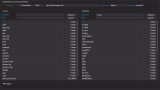
Two panes, the PS4 on one side and the server on the other, much like FileZilla. Servers are typed in as addresses with the protocol in front, and the developer's guide gives the format for each. Files copy both ways, and on the PS4 or a USB drive you can manage files, make zips, extract zip, 7z and rar archives, edit small text files and view pictures.
Packages install straight from a remote server, from the PS4's /data folder, from a USB drive or from a direct download link. Selecting a package first shows its icon and details.
Since version 2.00, large downloads and package installs can carry on in the background after you close the app. That needs BinLoader turned on in GoldHEN, because the background part is a separate payload, ezRemote Server, that ships with the client. After rest mode or a reboot, restart it from Global Settings to resume.
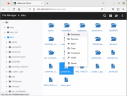
While the app is open there's a web interface on port 8080 of the PS4's address, for managing, uploading and installing files from a browser on another device. Thirteen languages are picked up automatically, and others can be set in /data/ezremote-client/config.ini.
Packages install straight from a remote server, from the PS4's /data folder, from a USB drive or from a direct download link. Selecting a package first shows its icon and details.
Since version 2.00, large downloads and package installs can carry on in the background after you close the app. That needs BinLoader turned on in GoldHEN, because the background part is a separate payload, ezRemote Server, that ships with the client. After rest mode or a reboot, restart it from Global Settings to resume.
While the app is open there's a web interface on port 8080 of the PS4's address, for managing, uploading and installing files from a browser on another device. Thirteen languages are picked up automatically, and others can be set in /data/ezremote-client/config.ini.
Release notes
v2.08 · Oct 20, 2026
- Reuse clients from a connection pool instead of creating new clients on every HTTP Range request This should potentially fix installing very large PKGs (> 4GB) from SMB/NFS on Synology/QNAP NAS.
- Fix race conditions on backgroud install/download. This should allow you to submit many background install request without causing the ezRemote Server to crash.
NOTE: If you are resuming from rest mode, make sure to restart ezRemote Server from the "Global Settings" dialog. The ezRemote Server version should show 1.08 for the fixes to take effect.